
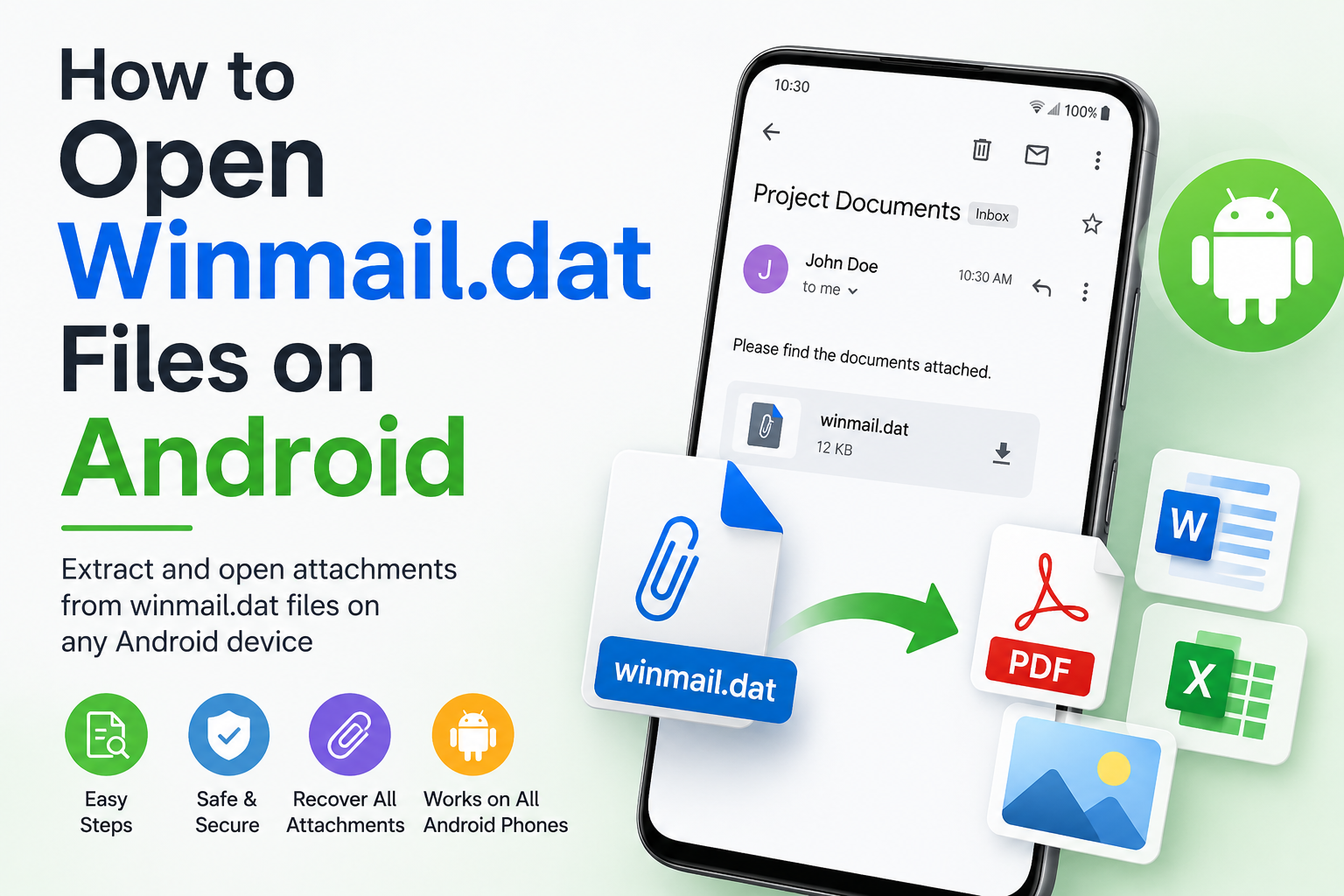
Have you received a winmail.dat attachment on your Android phone and don’t know what to do with it? Whether you’re using Gmail, Outlook, Samsung Email, or another email app, seeing a mysterious winmail.dat file instead of the expected document can be confusing.
Fortunately, the original attachment is usually still there—it’s simply hidden inside the winmail.dat file. With the right tool, you can extract and open it in just a few minutes.
In this guide, we’ll explain why Android shows winmail.dat files, how to open them, and how to prevent the issue in the future.
What Is a Winmail.dat File?
A winmail.dat file is a special email attachment created by Microsoft Outlook when an email is sent using Rich Text Format (RTF) and Microsoft’s proprietary TNEF (Transport Neutral Encapsulation Format).
Instead of sending attachments in a universal format, Outlook bundles them together with formatting information into a single file named winmail.dat.
If you’re unfamiliar with these files, read our guide: What Is a Winmail.dat File?
Why Does Android Show a Winmail.dat Attachment?
Most Android email apps cannot decode Microsoft’s TNEF format automatically.
This often happens when:
- The sender uses Microsoft Outlook.
- The email was sent in Rich Text Format.
- The message originated from Microsoft Exchange or Microsoft 365.
- Your email app doesn’t support TNEF attachments.
The problem is not caused by your Android device—it originates with the sender’s email software.
How to Open Winmail.dat Files on Android
Opening a winmail.dat file is straightforward.
Use an Online Winmail.dat Extractor
If you don’t want to install an app:
- Download the
winmail.datattachment. - Open your browser.
- Visit an online Winmail.dat Reader extraction tool.
- Upload the file.
- Download the extracted attachments.
This method works on virtually any Android phone.
What Files Can Be Extracted?
A winmail.dat file can contain almost any type of attachment, including:
- PDF documents
- Microsoft Word (.doc/.docx)
- Excel spreadsheets
- PowerPoint presentations
- Images (JPG, PNG)
- ZIP archives
- Calendar invitations
- Contact information
Once extracted, these files can be opened with the appropriate Android apps.
Does This Work on Samsung, Google Pixel, and Other Android Phones?
Yes.
The process is the same regardless of your device, including:
- Samsung Galaxy
- Google Pixel
- Motorola
- OnePlus
- Xiaomi
- Sony
- Nokia
- Other Android phones and tablets
The only difference may be the email app you’re using.
Can Gmail on Android Open Winmail.dat Files?
Unfortunately, Gmail for Android does not automatically decode all winmail.dat attachments.
If you’re using Gmail, you’ll typically need to download the attachment and extract it using a compatible app or an online Winmail.dat reader.
For more details, see our guide: How to Open Winmail.dat Files in Gmail.
Is It Safe to Open Winmail.dat Files on Android?
A winmail.dat file itself is not dangerous.
However, just like any email attachment, the files inside could contain malicious content if they come from an unknown sender.
Before opening extracted files:
- Confirm the sender is trustworthy.
- Scan suspicious files with antivirus software.
- Avoid opening executable files from unknown sources.
If the email comes from someone you know, the extracted attachments are generally safe.
How to Stop Receiving Winmail.dat Files
Unfortunately, Android users cannot prevent Outlook from sending winmail.dat files.
The sender must change their Outlook settings by:
- Disabling Rich Text Format (RTF)
- Sending emails in HTML format
- Configuring Outlook to use standard attachment encoding
You can share our guide on Preventing Winmail.dat File Generation in Outlook with the sender to help avoid the issue in future emails.
Frequently Asked Questions
Why can’t Android open winmail.dat?
Android email apps generally do not support Microsoft’s TNEF email format, which is why the attachment appears as winmail.dat.
Can I open winmail.dat without installing an app?
Yes. You can use an online Winmail.dat extraction tool directly from your mobile browser.
Does Gmail on Android support winmail.dat?
Not completely. Gmail usually requires you to extract the file before accessing the original attachments.
Can I recover photos and PDFs from a winmail.dat file?
Yes. Most winmail.dat files contain the original attachments, including PDFs, Word documents, spreadsheets, images, and more.
Conclusion
Receiving a winmail.dat file on Android doesn’t mean your attachment is lost. It simply means the email was sent using Microsoft’s TNEF format, which most Android email apps cannot decode automatically.
Whether you use Gmail, Outlook, Samsung Email, or another email client, you can quickly recover the original attachments using a Winmail.dat reader or an online extraction tool.
If you frequently receive Outlook emails, keeping a Winmail.dat extraction app installed on your Android device can save time and eliminate future frustration.